
Getting Started Tutorial#
Note
The AnyBody software comes with an inbuilt model repository - The AnyBody Managed Model Repository (AMMR). This tutorial starts with unpacking a local version of the AMMR. You can skip to lesson 1 if you have already done this.
Goals for this tutorial#
This tutorial takes a top-down approach and aims to accomplish the following:
Create a new standing model using the Human Standing template model
Learn how to load & change the posture of the human model, and use the model view window
Run an inverse dynamics analysis and review the results
This tutorial relies heavily on using the AnyBody Managed Model Repository (AMMR). Follow the steps below to unpack a local version of the AMMR.
Setting Up the AMMR#
The AnyBody Managed Model Repository (AMMR) is a comprehensive open library of musculoskeletal models and examples designed to use with the AnyBody Modeling System. It allows users to configure and combine different body models, which can be easily integrated into their own simulations and analyses.
The AnyBody Managed Model Repository (AMMR) is included with the AnyBody Modeling System. You can navigate to the Demo tab in the AnyBody Assistant dialog box.
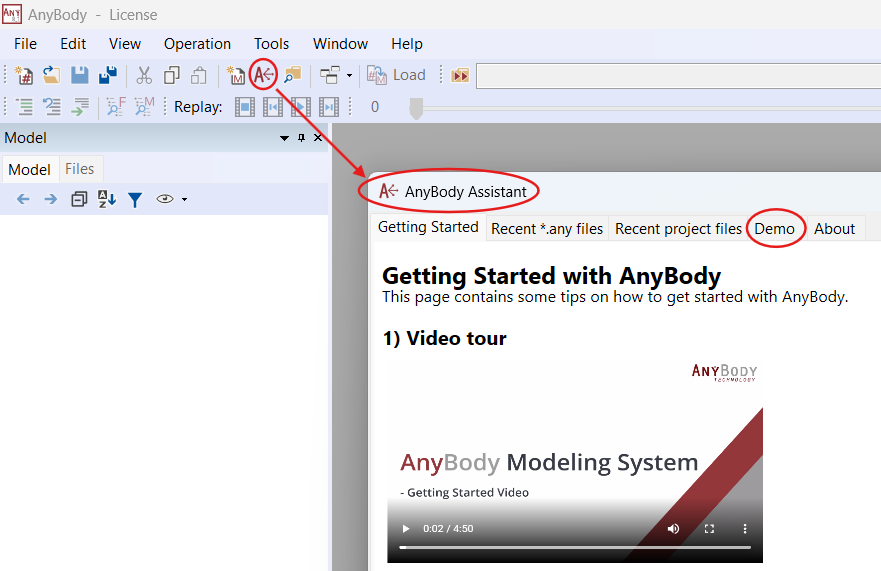
In the Demos tab you will find a gallery of the example models included in the AMMR. Following the link will take you to the application example overview page.
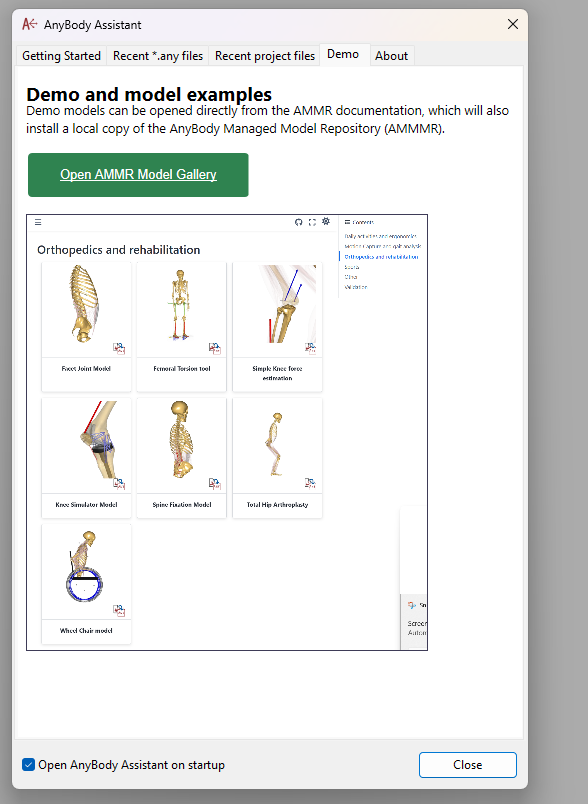
From here you are can browse the description of each model and open them directly in AnyBody. The first time you open one of the models, you will be prompted to unpack the full AMMR into your computer.
AMMR structure#
Open a file manager and navigate to the directory where you unpacked the repository (the default is your documents folder). You should see a folder structure that includes the following subfolders:
Application: Includes demo simulations of activities such as cycling, lifting a box, or propelling a wheelchair.
Body: Contains models of body parts and collections of body parts such as the lumbar spine model, leg models, etc., which are used by the applications.
A closer inspection of the Application branch reveals that it has four subfolders:
The Beta folder contains models that are unfinished but may still be useful.
The Examples folder contains many models of various activities of daily living, and it is likely that you will find a model that is similar to your own end goal.
The MocapExamples folder contains models utilizing the AnyMoCap framework. If you have your own motion capture data, this is a good place to start, whether you want to analyze multi-trial/subject MoCap data or a single subject wearing an inertial MoCap suit.
The Validation folder contains models that have been used for validation purposes, typically by comparison of the model predictions with experimental measurements.
Important
AnyBody Modeling System comes with a version of AMMR (not necessarily the latest) placed in the installation folder of the software. Do not directly use these files for your actual work as updates or reinstallation of AnyBody can overwrite your changes. So always copy the files from the AMMR folder to your working folder before using them.
Continue
With that knowledge, you are all set to go, and you can proceed with Lesson 1: Creating the standing model using the template.